Agents
The Agents page is where an operation is actually run. It lists every agent that has checked in, and it is the way in to each agent's console, file browser and actions.

- Search - filters the table on everything visible in it - hostname, user, IP, process
- Generate launcher - builds a one-line command that starts an agent, without leaving the page
- Table - this view: one row per checked-in agent
- Graph - the same agents as a topology, grouped by the listener they arrived through
- Discovery - hosts, services and credentials in this pane, keeping the console below
- Side panel - opens any page beside this one; see the Side Panel page
- Table actions - actions for the whole table, including which columns it shows
- Agent row - one checked-in agent. Double-click it to open its console, right-click for its actions
Reading the table
One row is one checked-in agent. The columns that decide what you do next:
- OS - platform, with a badge for the integrity or privilege level where the agent reports one.
- GUID - the agent's identifier. This is what the API and the scripting library use.
- Listener - which listener it arrived through. Stopping that listener stops this agent calling home.
- Last and Next - when the agent last checked in and when it is next expected. An agent that is late is not necessarily gone; a sleep of an hour means an hour of silence is normal.
- Notes - free text, per agent, for whoever picks the operation up after you.
The search box filters on everything visible in the row - hostname, user, IP, process - so
admin finds agents running as an admin account and 10.16. finds a subnet. The client only
ever fetches agents that are still considered active, so an agent that has been removed will
not be found by searching for it.
Opening an agent
- Double-click a row to open its console. See Terminal.
- Right-click a row for everything else that can be done with that agent.
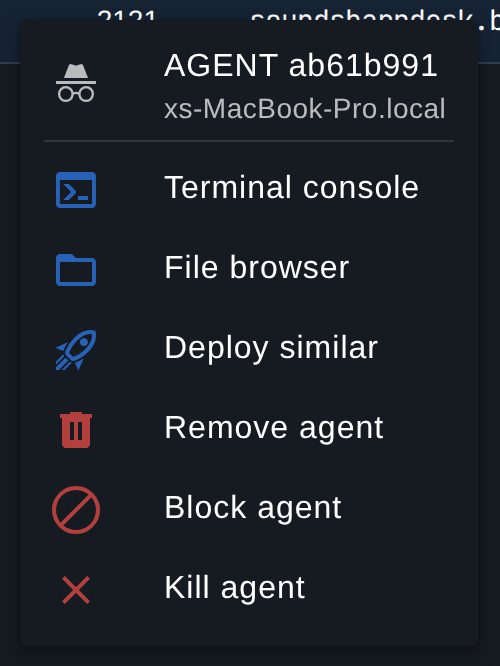
The row menu is where the file browser, the process list, the per-agent actions and the destructive operations live. There is no button in the row for these: the gesture is the right-click.
Working with several agents at once
An operation with two hundred agents is not driven one row at a time. Clicking an agent's platform icon selects it, Ctrl-click adds to the selection and Shift-click takes a range, the same as a file manager.
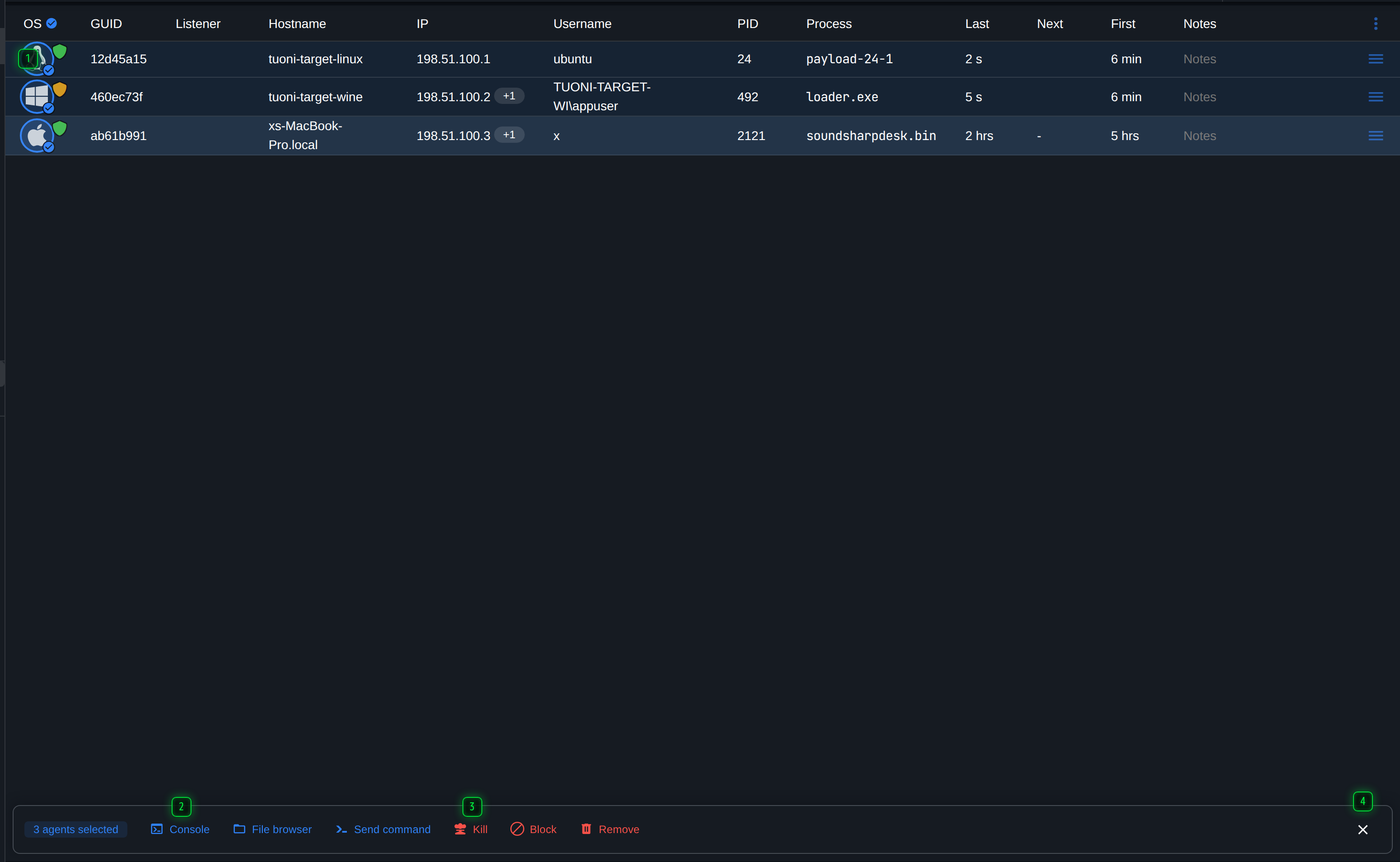
- Select - click an agent's platform icon to select it, Ctrl-click to add to the selection, Shift-click for a range
- Act on all of them - opens a console or a file browser for every selected agent, or sends one command to all of them at once
- Destructive actions - kill, block or remove the whole selection. Each one confirms first, and reports partial failures
- Clear - drops the selection, as does Esc
The bar appears as soon as more than one agent is selected, and it says how many. Everything on it applies to the whole selection: opening a console or a file browser for each, sending one command to all of them, or killing, blocking and removing them together.
Bulk operations report what actually happened. If eleven of twelve agents accept a command, you are told that one did not, rather than being shown a success message for the set.
Two views of your agents
The first two toolbar buttons are the same agents shown two ways:
- Table - this view.
- Graph - the agents drawn as a topology, grouped by listener, showing which agents pivot through which. See Topology.
The search term is shared between them. If the graph looks like it is missing agents, check for a filter chip beside the search box: it says how many are hidden, and clicking it clears the term.
The third button, Discovery, is a different thing entirely. It does not show your agents; it shows what they have found - the hosts, services and credentials gathered from the network they are on - in this pane, keeping the console below. See Discovery.