File Browser
Right-click an agent on the Agents page and choose File browser to open that host's filesystem as a pane, beside or instead of its console. It opens as a tab, like a console, and it persists the same way.
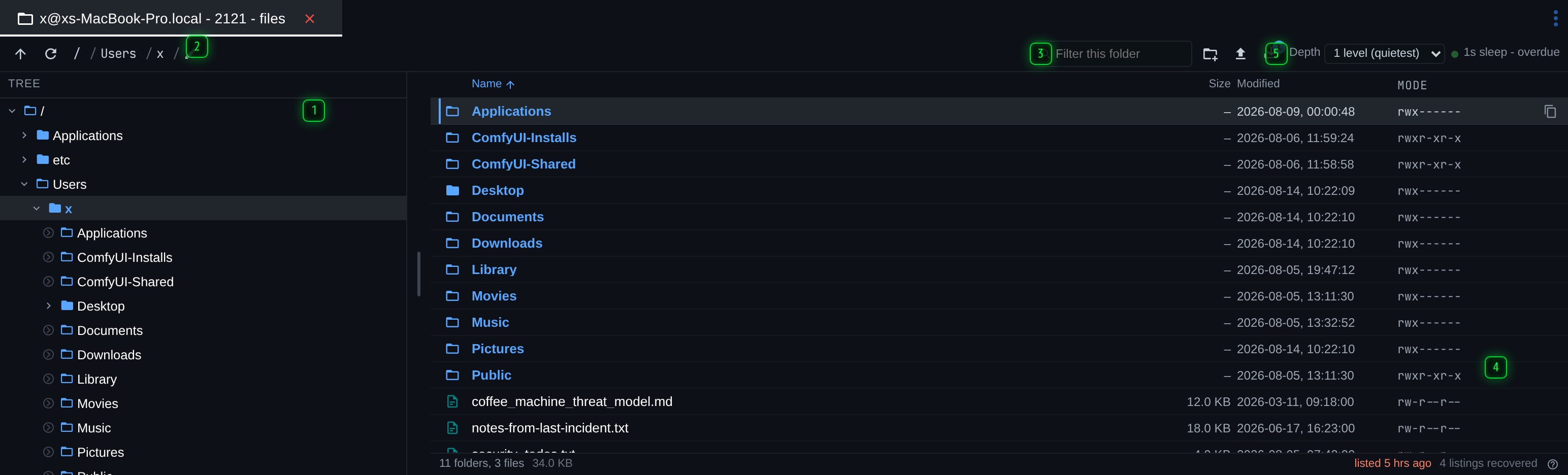
- Tree - the host's directories. Clicking a folder opens it; the arrow expands it in place, which lists it on the agent without navigating there
- Path - where you are. The pencil turns it into a box you can type into, absolute or relative to the current folder
- Filter - narrows the listing in view. Escape clears it
- Listing - the current folder. Double-click a folder to open it, Backspace goes up, and the arrow keys move a cursor through it
- Depth - how much is asked for in one request. One level is the quietest; deeper fills the tree faster and is more traffic on the wire
Two panes
The tree on the left is the host's directory structure. The listing on the right is the folder you are in.
They do different things on purpose:
- Clicking a folder in the tree navigates to it, and the listing follows.
- Clicking the arrow beside it expands it in place. That lists the folder on the agent without moving you out of the folder you are working in, which is how you look around without losing your place.
- Double-clicking a folder in the listing opens it. Backspace goes back up.
The arrow keys move a cursor through the listing, and the tree is navigable from the keyboard too: Home and End jump to the first and last entry, and the arrow keys walk it.
The path
The breadcrumb shows where you are. The pencil beside it turns it into a box you can type
into, which takes an absolute path (C:\Windows\System32, /var/log) or one relative to the
current folder (Downloads).
Filtering
The filter box narrows the folder in view. It filters what has already been listed rather than asking the agent for a new listing, so it is instant, and Esc clears it.

What you can do to a file
Right-click a row for the operations available on it.
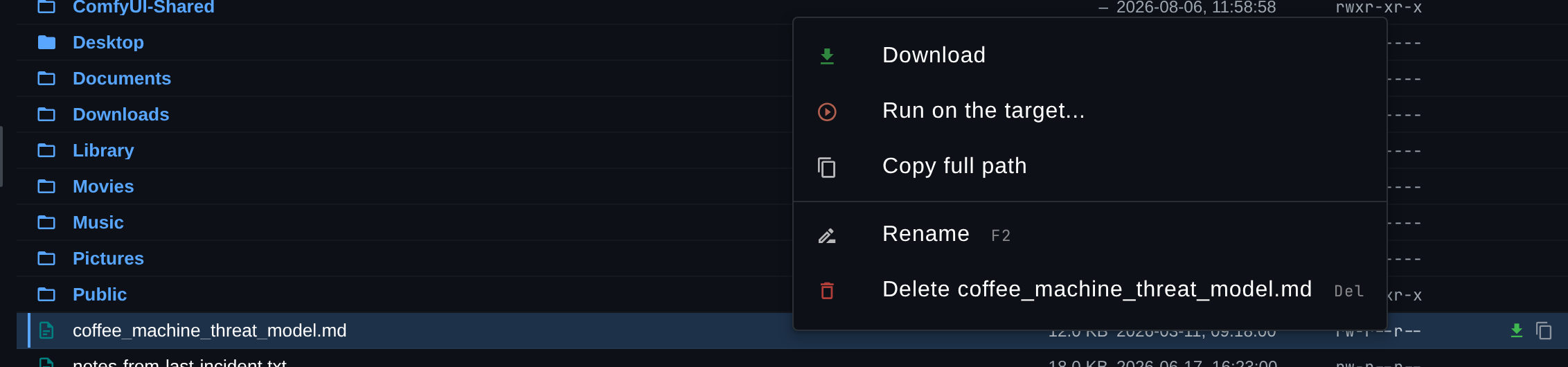
Download fetches the file through the agent; it lands on the server, on the Files page, not in your browser. Run on the target executes it where it is. Copy full path puts the absolute path on your clipboard, which is what you want when the next step is a command rather than a click. Rename and Delete change the host, and both confirm first.
The menu is shorter on a folder: a directory offers Open instead of Download and Run, and the rest is the same.
The three commonest actions are also on the row itself, appearing on hover, and the keyboard reaches them without the menu: Enter downloads the row under the cursor (or opens it, if it is a folder), and Ctrl+C copies its path.
Previewing a file
Double-click a file, or press Enter on it, and Tuoni fetches it to the server and opens it in a preview pane beside the listing - so you can read a config, a note or a log without saving it to your own machine first.
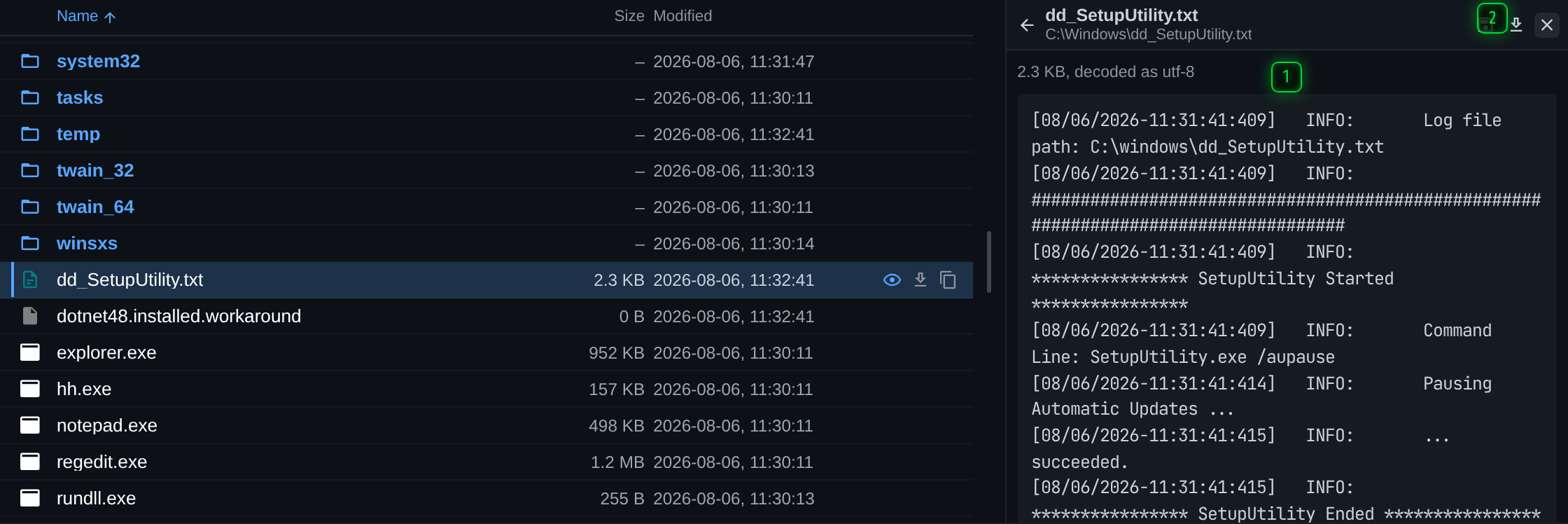
Text is shown as text, images render, and structured files are displayed as what they are. Anything the browser cannot render - a binary, or a file too large to show in full - says so and offers to save it or to show it as text anyway. Save keeps a copy on your own machine; the fetched file is also on the Files page regardless, because the fetch went through the server.
The preview is a real download, so it counts as fetching the file from the host - see the note below on what that means for a sleeping agent.
What comes from the agent and what comes from the record
This is the part that surprises people, and it is deliberate.
Every listing the browser has ever fetched is kept by the server, so opening the browser on an agent shows the structure that is already known, immediately, without sending anything. That is why the tree can be populated the moment the pane opens.
Navigating to a folder asks the agent to list it. That is a command like any other: it goes out at the agent's next check-in, and the pane says so while it waits. On an agent that sleeps for an hour, the folders somebody has already visited are there instantly and a new one takes up to an hour. On an agent that has stopped calling home, the record is all there is.
The status line at the bottom of the pane says which you are looking at, including how long ago the current folder was listed.
Permissions
On macOS, Linux and BSD hosts the listing carries a Mode column with the POSIX permission
bits, as ls -l would print them. Windows agents do not report it and the column is not shown
there, so its absence is a fact about the host rather than about the file.
Depth
The depth control decides how much is asked for in one go. One level is the quietest: it lists the folder you asked for and nothing else. Deeper listings fill the tree faster and are more traffic on the wire, which is a decision about the operation rather than about the interface.
Transfers
Files can be downloaded from the listing, and uploaded into the folder you are in. Downloads are fetched by the agent and arrive on the server, where they appear on the Files page - the transfer does not go directly to your browser.
Rows can also be dragged: drag one onto a folder in the tree to move it there, or drag a file in from your own machine to upload it into the current folder.
The full reference
A ? at the bottom-right of the pane opens the complete key: what each icon means, and every keyboard shortcut and selection gesture the browser supports.
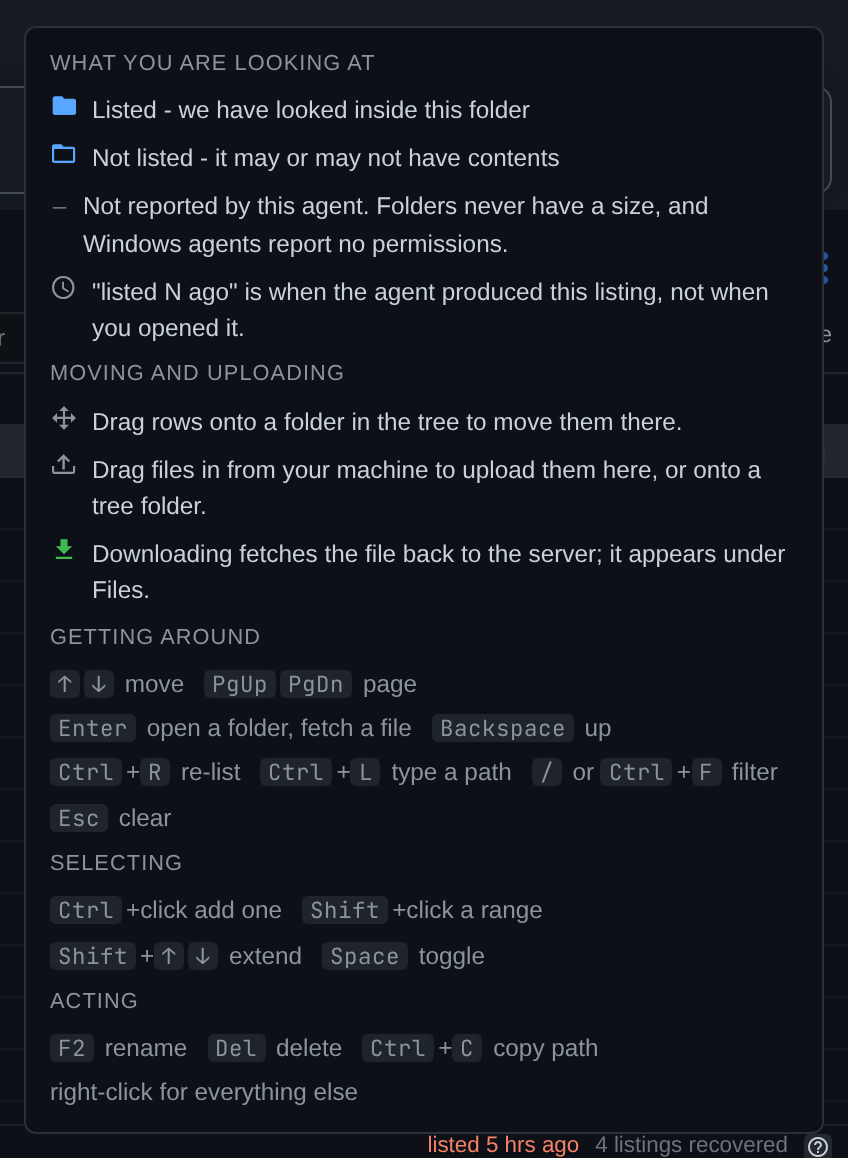
It is the fastest way to answer "what does this icon mean" and "how do I select a range" without leaving the pane, and it is generated from the same shortcut definitions the browser actually binds, so it cannot fall out of step with the keys.