Side Panel
The side panel opens a second section of the client beside the one you are working in. It is the answer to "I need to check something without losing what I am doing".
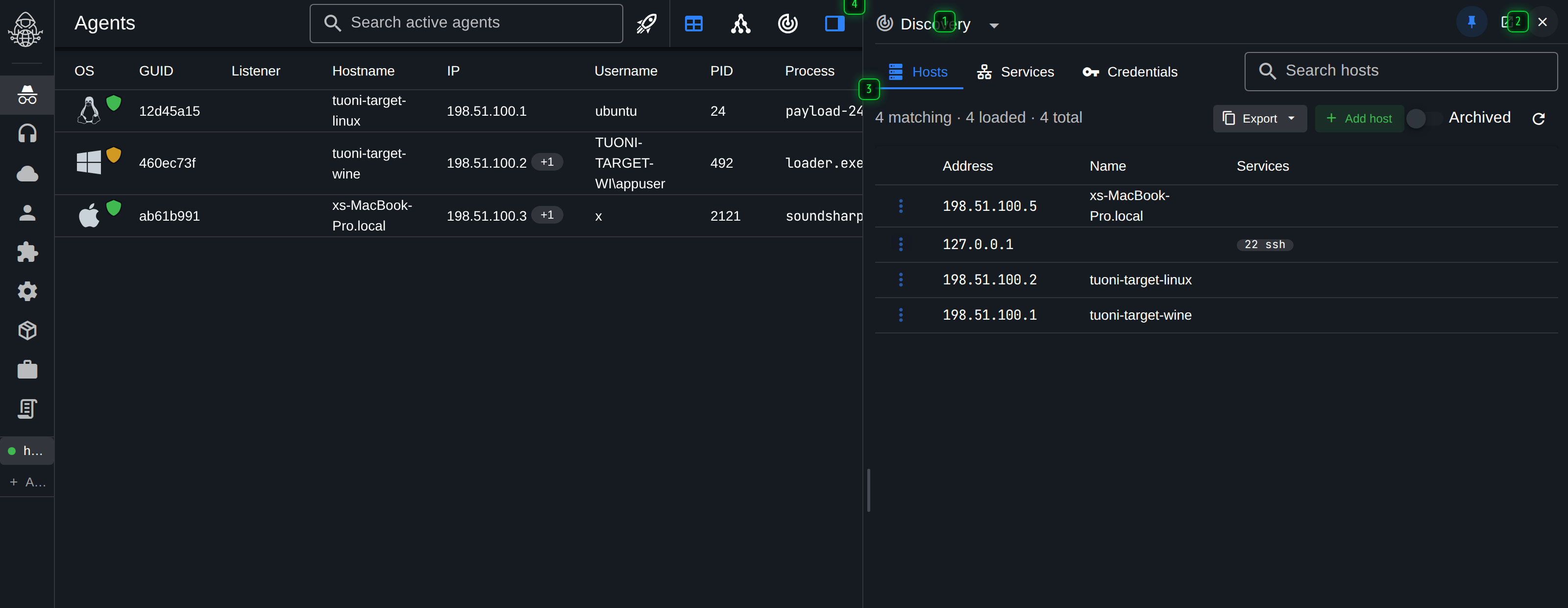
- Section - what the panel is showing. Any section listed here can be opened beside the page you are on
- Panel actions - the section's own toolbar docks here, so its search and buttons are inside the panel rather than on the page behind it
- Resize - drag the edge to give the panel more room; the page keeps the rest
- Toggle - opens and closes the panel, as does Ctrl+Shift+D
Open and close it with the dock button in the toolbar, or with Ctrl+Shift+D.
What can go in it
Most sections of the client: discovery, listeners, payloads, files, plugins, commands, jobs and scripts. The section is chosen from the dropdown in the panel's own header, and the client remembers which one you had open.
The section brings its own toolbar with it. Its search box and its buttons dock into the panel header rather than staying on the page behind, so both panes have a working toolbar at the same time.
Docked or over the page
There are two behaviours, and which one you get depends on how much room there is:
- Docked - the page is laid out beside the panel and both are fully usable. This needs enough width for the page to still be worth reading.
- Over the page - on a narrow window the panel covers the page instead, with a scrim. It closes on Esc.
The pin button keeps the panel docked across pages, so it stays open as you navigate. Dragging the panel's inner edge changes how the width is split.
From the command palette
Every section that the panel can show is also offered by the command palette as "show in the side panel", so a section can be opened beside the current page without touching the mouse.
Why it exists
The common case is an agent console that must stay open. Running a command that needs a payload id, checking which listener a host came in on, or looking up a credential all used to mean leaving the console and coming back to it. With the panel, the console keeps its scrollback and its half-typed command line while the other section is on screen next to it.